
Microsoft Access - Create a Query
For example, you might like to see a list of all individuals whose first name is "Homer". Or you might like to see a list of all users who have registered with your database over a given time period. To do this, you need to do a query.
Here's how to create a query in Microsoft Access:
- Ensuring you have the "Query" tab open, click "New"
- Select "Simple Query Wizard" and click "OK":
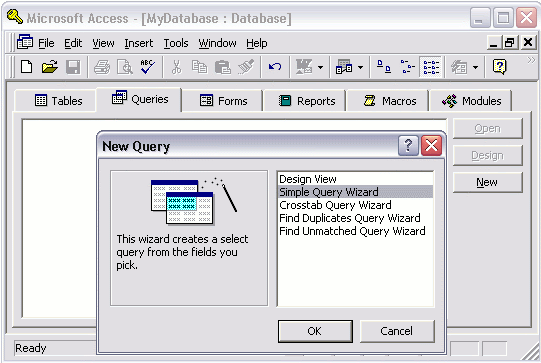
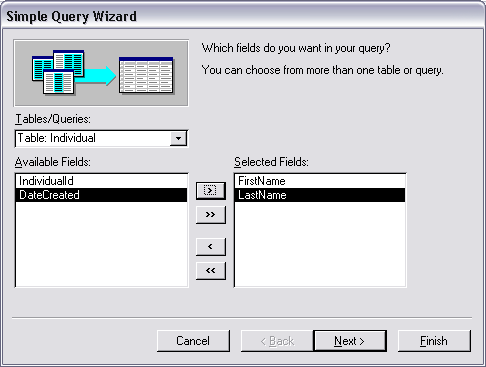
- Choose the fields you'd like to be presented in the results of your
query. To choose 1 field at a time, select it and click the ">"
arrow. To choose all fields click the ">>" arrows. For now, just
select the "FirstName" and "LastName" fields, then click "Next":
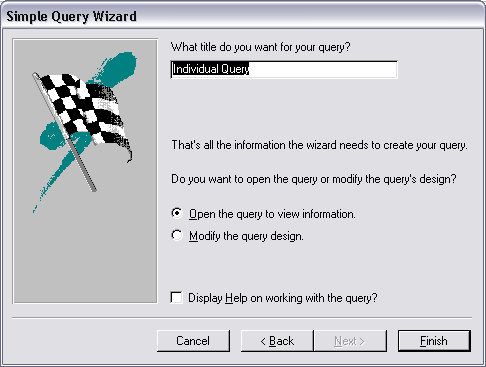
- Choose a name for your query and click "Finish":
The Result
You should now see something like this: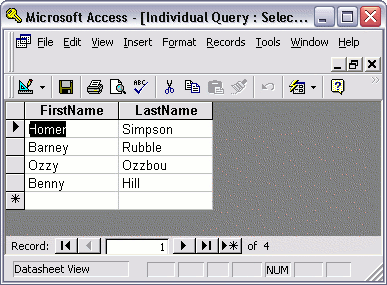 At this stage, you may be thinking that there's not much difference
between the results of our query and our table. We can still see all
records from our table. The only difference is that we can only see 2
fields instead of all 4 fields.
At this stage, you may be thinking that there's not much difference
between the results of our query and our table. We can still see all
records from our table. The only difference is that we can only see 2
fields instead of all 4 fields.Well if that's what you're thinking, you'd be right! In our next lesson, we're going to modify our query so that we can only see some of the results.



